
Fitness trackers collect some of the most personal information generated by our everyday activities. Daily steps, heart rate, sleep patterns, workout duration, movement habits, and other health-related measurements can reveal considerably more about our lives than we might expect. Yet many modern wearables are designed around permanent smartphone connectivity, automatic synchronization, online accounts, and cloud-based dashboards.
For privacy-conscious users, this creates an important question: Can we monitor our fitness without continuously transmitting personal activity data to smartphone applications and remote servers?
The answer is yes, although the practical approach depends on the wearable, its firmware, and the available data-export options. With the right equipment and configuration, we can build a fitness-tracking environment that keeps workout records on locally controlled devices, avoids unnecessary Bluetooth connections, and eliminates dependence on manufacturer cloud services.
This approach is commonly described as air-gapped fitness tracking or local-only fitness data management.
However, there is an important distinction between a permanently disconnected device and a wearable that periodically transfers files through a controlled USB connection. Understanding that distinction helps us create a realistic privacy-first system without sacrificing useful workout information.
Table of Contents
What Does It Mean to Air-Gap a Fitness Tracker?
An air-gapped fitness tracker operates without an active connection to the internet or an external cloud service. In a strict implementation, the wearable remains disconnected from Bluetooth, Wi-Fi, cellular networks, and other wireless communication channels.
The objective is to prevent fitness information from leaving the controlled environment.
A practical air-gapped setup generally consists of three components:
- An offline fitness tracker: A watch, cycling computer, or wearable capable of recording activity independently.
- A local data-transfer method: Preferably a USB cable or removable storage, rather than wireless synchronization.
- A private data-management system: A computer, encrypted external drive, local database, or self-hosted dashboard.
The important distinction is that recording information and synchronizing information are separate activities. A watch can measure steps, distance, heart rate, and workout duration without immediately transferring those measurements to a smartphone.
We can therefore record activities throughout the day and transfer the resulting files later through a controlled physical connection.
Air-Gapped vs. Offline vs. Local-Only Fitness Tracking
These terms are often used interchangeably, but they describe different privacy arrangements.
| Configuration | Bluetooth | Internet | Cloud storage |
|---|---|---|---|
| Conventional tracking | Usually enabled | Yes | Usually |
| Offline recording | Optional | No | No automatic upload |
| Local-only synchronization | May be enabled temporarily | No | No |
| USB-based air-gapped workflow | Disabled during recording | No | No |
| Strict permanent air gap | Disabled | No | No |
A permanently disconnected wearable is the strongest option from a network-isolation perspective. However, it may not support convenient data extraction.
A USB-based workflow provides a practical compromise: we keep wireless connections disabled during normal use and transfer activity files through a controlled computer when necessary.
Our objective is not simply to turn off Bluetooth. It is to establish control over where fitness information is stored, how it moves, and which applications can access it.
Step 1: Choose a Fitness Tracker That Supports Independent Recording
Not every fitness tracker is suitable for a completely disconnected environment.
Some devices require smartphone activation, account registration, or proprietary applications before they can perform their basic functions. Others can record workouts independently but restrict access to historical measurements behind a manufacturer’s application.
Before purchasing or configuring a wearable, we should evaluate several capabilities.
Independent workout recording: The device should be able to record activities without maintaining a connection to a smartphone.
Local storage: Ideally, completed activities should remain available on the device until we manually retrieve them.
Standard data formats: Support for FIT, GPX, and TCX files makes transferring information between different applications considerably easier.
Physical connectivity: USB data transfer is preferable when we want to avoid wireless synchronization.
Wireless controls: The device should allow us to disable Bluetooth and Wi-Fi independently, where applicable.
No mandatory cloud account: Basic activity recording should not depend on continuous authentication with a manufacturer’s server.
Which Fitness Tracker Categories Work Best?
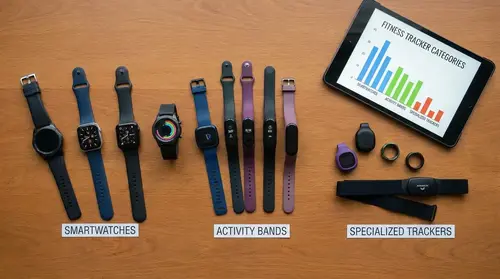
Different wearable categories offer different levels of independence.
- GPS sports watches: Some Garmin sports watches can record activities and store FIT files locally. Compatibility and transfer methods vary by model.
- Basic pedometers: Simple step counters can be useful when we only need daily activity totals and do not require advanced analysis.
- Cycling computers: Certain models support direct file access and provide detailed GPS and workout records.
- Open-source-compatible wearables: Some devices work with alternative companion software that provides greater control over locally stored information.
For privacy-focused users, a device with accessible activity files is generally more useful than a wearable with dozens of advanced features but no practical local export option.
Step 2: Disable Bluetooth, Wi-Fi, and Automatic Synchronization
The next step is to reduce the number of communication channels available to the wearable.
Bluetooth is commonly used to connect fitness trackers to smartphones. Depending on the manufacturer, the connection may synchronize activity records, notifications, health measurements, device settings, and firmware updates.
Wi-Fi-enabled wearables may also transfer information without requiring a smartphone connection.
To create a more isolated environment, we should review the communication settings on both the wearable and its companion devices.
How to Disable Wireless Connections
The exact menu names depend on the manufacturer and model, but the general procedure is straightforward:
- Open the watch’s settings menu.
- Locate the connectivity or wireless settings.
- Disable Bluetooth when it is not required.
- Disable Wi-Fi if the device supports it.
- Turn off automatic synchronization.
- Disable unnecessary smartphone notifications.
- Check whether the wearable automatically reconnects after restarting.
- Repeat the inspection after firmware updates or factory resets.
Some trackers do not offer complete wireless controls. Others require Bluetooth for certain functions, including configuration or access to historical records.
We should verify actual device behavior rather than assuming that airplane mode or a disabled Bluetooth toggle automatically blocks every communication channel.
Prevent the Smartphone From Becoming a Data Gateway
Even when the wearable is disconnected, a smartphone may still contain previously synchronized health information.
For a stronger local-only arrangement, we should avoid granting unnecessary permissions to fitness applications.
Review access to:
- Location services.
- Contacts.
- Background application activity.
- Health and fitness databases.
- Cloud backups.
- Automatic photo and file synchronization.
- Cross-device application synchronization.
If a companion application is required for initial setup, we should determine whether it can operate without an online account and whether its network access can be restricted afterward.
A phone with Bluetooth disabled is not automatically an air-gapped computer. It may still communicate through Wi-Fi, cellular networks, and other interfaces.
Step 3: Extract Garmin Fitness Data Through USB
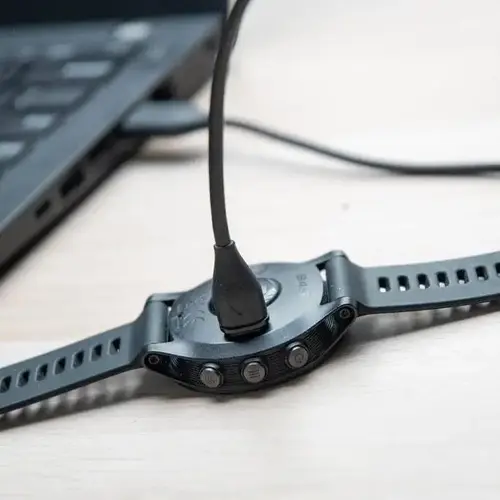
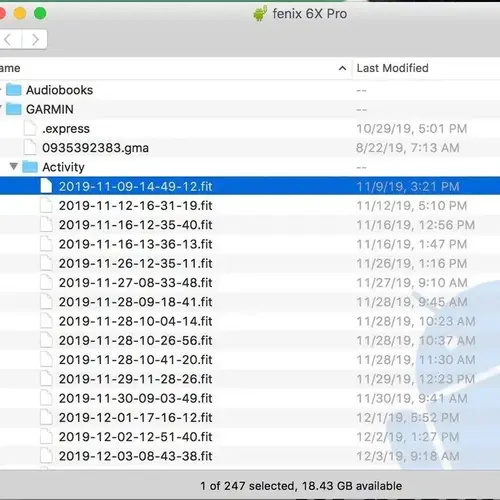
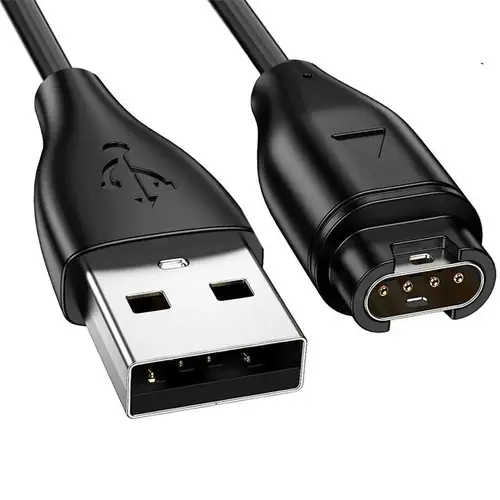
Garmin devices are particularly interesting for local fitness data management because compatible models store activities in the FIT file format.
According to Garmin’s developer documentation, an activity FIT file can contain information such as timestamps, sport type, lap and split data, GPS tracks, sensor measurements, and activity events. developer.garmin.com+1
This makes FIT files useful for transferring workout information into independent analysis tools.
However, not every Garmin watch exposes its internal storage as a conventional USB drive. Some models use Media Transfer Protocol (MTP), and some require specific device settings or software for file access.
How to Locate Garmin FIT Files
For compatible Garmin devices that expose their storage through USB, follow these steps:
1. Connect the watch to a computer.
Use a compatible USB data cable. Some charging cables provide power without supporting data transfer, so verify the cable before troubleshooting the watch.
2. Open the device storage.
On Windows, open File Explorer and inspect the connected device under This PC.
On compatible models, the device may appear as a removable drive. Other models may appear as a portable device using MTP.
3. Locate the Garmin activity directory.
Look for the following folder structure:
Garmin/
    Activity/
        2026-11-09-08-30-00.fit
        2026-11-08-07-15-00.fit
        2026-11-07-18-20-00.fit
The precise filenames and folder structure depend on the device.
4. Copy the activity files.
Select the relevant FIT files and copy them into a dedicated folder on the computer.
For example:
Fitness-Archive/
    Garmin/
        2026/
            November/
                morning-run.fit
                cycling-session.fit
5. Safely disconnect the wearable.
After copying the files, eject the device using the computer’s normal procedure.
6. Verify the exported activities.
Check that the copied files are present, readable, and reasonably sized. Keep the original files unchanged as your primary activity archive.
Garmin documents this general USB-based file retrieval process, including the Garmin/Activity directory. Its support documentation also notes that MTP devices may not appear as conventional drives on macOS, making Windows compatibility important for certain models. Garmin Customer Support+1
Can We Access Garmin Data Without Garmin Connect?
Yes, for compatible devices that expose their activity files.
We do not need to upload a FIT file to Garmin Connect simply to preserve it on a computer.
We can store the original file, create local backups, and process the activity using compatible FIT-reading software.
There is an important limitation: manually accessing activity files does not necessarily provide every measurement displayed inside Garmin Connect. Some daily health summaries, sleep analyses, recovery calculations, and proprietary metrics may not be available through ordinary activity exports.
The local file should therefore be treated as a record of the information actually exported, not a complete replacement for every manufacturer-specific feature.
Step 4: Use Open-Source Software Without Depending on Cloud Accounts
An important part of privacy-first fitness tracking is choosing software that does not automatically transmit personal activity records to external servers.
One interesting option is Gadgetbridge.
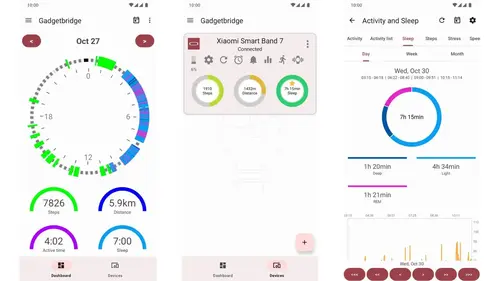
Gadgetbridge is an open-source Android companion application designed to work with supported smart devices.
Unlike many commercial fitness applications, Gadgetbridge does not request Android network permission. Its documentation explains that this prevents the application from forwarding collected device information over the internet. Gadgetbridge
It also offers local data-management features.
What Can Gadgetbridge Do?
Depending on the supported wearable and available device features, Gadgetbridge can provide:
- Local activity records.
- Device information and settings.
- Fitness-related measurements.
- Historical data management.
- Manual data export.
- Local database backups.
Its data-management system allows users to export collected information into an SQLite database and supporting files. The application also provides ZIP-based export and import functionality. Gadgetbridge
Does Gadgetbridge Work Without Bluetooth?
This distinction is essential.
Gadgetbridge generally communicates with supported wearables through Bluetooth. It is therefore not a Bluetooth-free synchronization solution.
However, it can be useful in a privacy-focused local-only configuration when we permit a controlled Bluetooth connection but do not want the companion application to send data to cloud servers.
For users who require strict radio isolation, USB file extraction or an entirely disconnected recording workflow is more appropriate.
We should also verify the current supported-device list before choosing a wearable. Compatibility varies between manufacturers, models, and firmware versions.
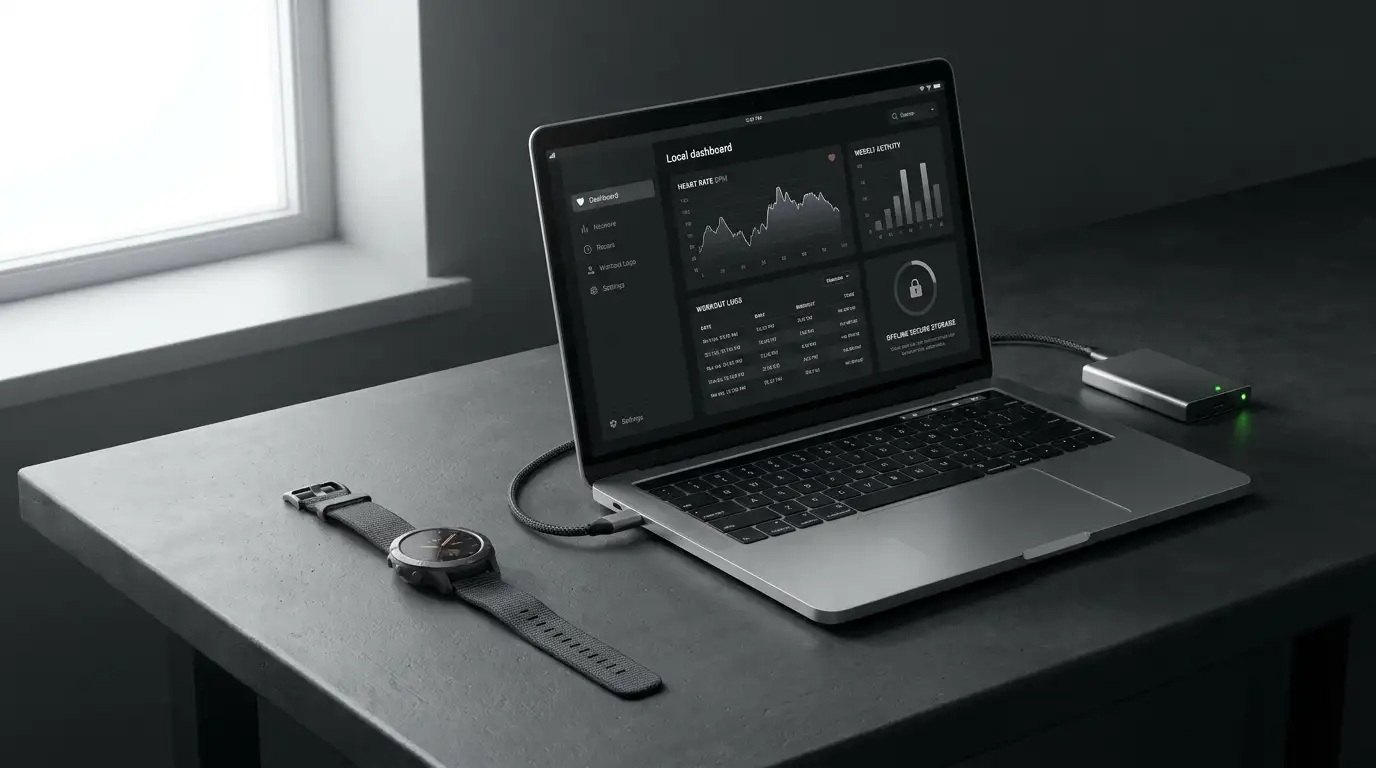
Step 5: Build a Completely Local Fitness Data Dashboard
Once we have extracted our activity records, we need a convenient way to organize and analyze them.
Keeping hundreds of FIT files in folders is useful for archiving, but it does not provide the same experience as a fitness dashboard.
Fortunately, we can create a private fitness-management environment without relying on commercial cloud platforms.
There are three practical approaches.
Option 1: Use a Local Spreadsheet
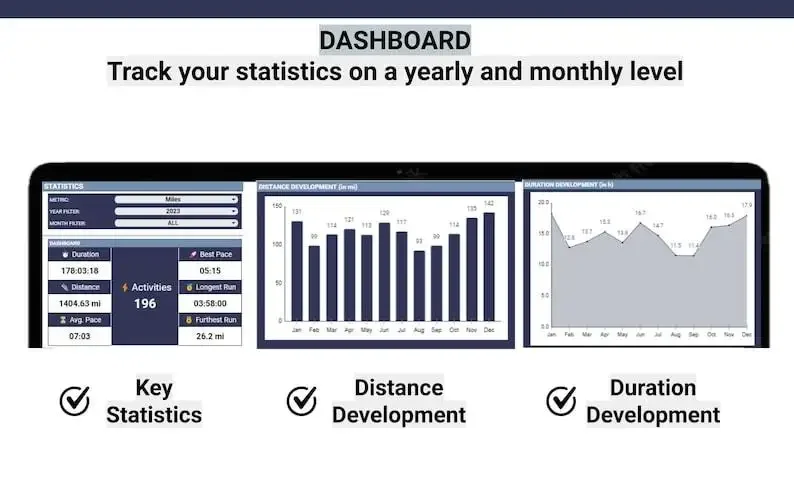
A spreadsheet is one of the simplest ways to manage personal workout information.
We can use LibreOffice Calc or an offline spreadsheet application to create a structured activity database.
Useful columns include:
| Metric | Information recorded |
|---|---|
| Date | Workout date |
| Activity | Running, cycling, walking, or strength training |
| Duration | Total workout time |
| Distance | Distance covered |
| Average heart rate | Average recorded BPM |
| Maximum heart rate | Highest recorded BPM |
| Calories | Estimated activity calories |
| Notes | Personal observations |
We can then create charts showing weekly workout duration, monthly running distance, and changes in training frequency.
The main advantage is simplicity. The spreadsheet remains on our computer, and we decide when to create backups or transfer information.
Option 2: Install Home Assistant Locally

Home Assistant is another option for users who want a more advanced personal dashboard.
It can run on a local server or compatible computer and display information through customizable dashboards.
However, we need to distinguish between cloud-connected integrations and genuinely local data sources.
For example, the community Garmin Connect integration requires a Garmin Connect account and retrieves information from Garmin’s cloud service. It is therefore not appropriate for a strictly air-gapped configuration. GitHub+1
A better approach for a local-only environment is to import exported activity files into a local processing workflow and expose the resulting measurements to Home Assistant through locally controlled sensors or databases.
We can then display:
- Daily activity totals.
- Weekly workout duration.
- Monthly training distance.
- Historical heart-rate measurements.
- Personal workout records.
- Exercise frequency.
- Long-term fitness trends.
The server itself should be configured without external cloud synchronization if complete network isolation is the objective.
Option 3: Use Endurain for Self-Hosted Fitness Tracking
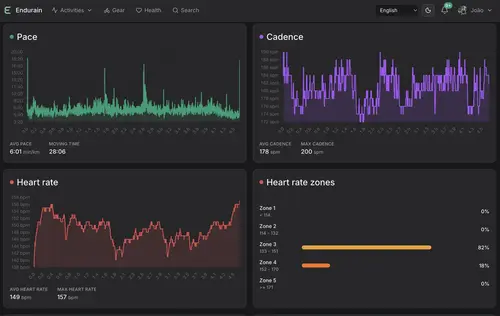
Endurain is another interesting solution.
It is designed to provide a self-hosted environment for managing fitness activities.
Its documentation describes support for importing common activity formats, including FIT, GPX, and TCX. docs.endurain.com
This makes it particularly relevant to users who want to maintain an organized workout history without depending on a commercial fitness platform.
A self-hosted installation gives us control over the server, database, backups, and access permissions.
Nevertheless, self-hosting does not automatically mean air-gapping. If the server is accessible over the internet or communicates with external services, the environment is not completely isolated.
For maximum privacy, we should run the application on a private local network, disable unnecessary external connections, and maintain independent backups.
Step 6: Create an Encrypted Local Fitness Archive
Our fitness data deserves the same protection as personal documents and financial records.
A collection of workout files can reveal daily routines, frequently visited locations, training schedules, and other behavioral information.
Consequently, simply avoiding cloud synchronization is not enough. We also need to protect the information stored on our computers.
Organize Fitness Records Into a Dedicated Directory
A practical archive structure might look like this:
Private-Fitness-Archive/
│
├── Activities/
│   ├── 2026/
│   │   ├── January/
│   │   ├── February/
│   │   └── November/
│
├── Daily-Metrics/
│
├── Heart-Rate/
│
├── GPS-Tracks/
│
├── Reports/
│
└── Backups/
This structure separates original activity files from processed information and exported reports.
It also makes it easier to move between different fitness applications without losing access to historical records.
Encrypt the Archive
We recommend encrypting the computer’s storage and maintaining an encrypted backup on an external drive.
Tools such as VeraCrypt can create encrypted storage containers for sensitive files.
Alternatively, operating-system disk encryption can protect the entire computer.
A sensible backup arrangement includes:
- The primary archive on the computer.
- An encrypted backup on an external drive.
- A second backup stored separately from the primary computer.
For strict air-gapped environments, backup drives should remain disconnected when not in use.
We should also test restoration periodically. An encrypted backup that cannot be restored is not a reliable backup.
Step 7: Understand the Limitations of Air-Gapped Fitness Tracking
Completely disconnecting a fitness tracker offers meaningful privacy advantages, but it also introduces practical limitations.
We should understand these trade-offs before changing our existing setup.
What We Gain
Greater data ownership: Activity files remain under our control instead of automatically being uploaded to a manufacturer’s account.
Reduced cloud exposure: We eliminate routine transmission of fitness records to external servers when the entire workflow remains local.
Less dependence on commercial applications: We can use standard formats and compatible independent software.
More control over retention: We decide how long to keep activity records and when to delete them.
Greater control over backups: We choose where our historical information is stored.
Reduced wireless activity: Keeping Bluetooth and Wi-Fi disabled when unnecessary can reduce wireless communication and potentially save battery power.
However, battery savings vary by wearable, and disabling Bluetooth does not guarantee a significant improvement.
What We Lose
There are also disadvantages.
| Feature | Conventional setup | Air-gapped setup |
|---|---|---|
| Automatic synchronization | Usually available | Generally unavailable |
| Cloud backup | Often included | Manual local backup |
| Global leaderboards | Available | Usually unavailable |
| Smartphone notifications | Available | May be unavailable |
| Online fitness communities | Available | Unavailable without connectivity |
| Local activity history | Device-dependent | Manually maintained |
| Manufacturer analytics | Often available | Frequently limited |
| Firmware updates | Convenient | Manual or restricted |
Some advanced fitness metrics may also depend on proprietary algorithms or connected services.
For example, sleep scores, training readiness, recovery estimates, and other advanced calculations might not be available through exported activity files.
An air-gapped fitness system prioritizes privacy and data control over convenience and connected features.
Common Mistakes When Building an Offline Fitness Tracking System
Even a carefully configured wearable can expose information if the surrounding workflow is overlooked.
Here are several mistakes worth avoiding.
1. Assuming Airplane Mode Disables Every Wireless Interface
Airplane mode behavior differs between manufacturers and operating systems.
Some devices allow Bluetooth to remain active, while others may preserve previously enabled wireless settings.
We should inspect individual connectivity settings rather than relying exclusively on one mode.
2. Assuming USB Automatically Means No Data Exposure
USB is a physical connection, but that does not make every transfer automatically secure.
A connected computer can access device storage, and some USB interfaces may expose additional functionality.
Use a trusted computer, inspect the connected device, and avoid installing unnecessary software.
3. Using Cloud-Dependent Applications for Local Dashboards
A dashboard may appear on a local computer while still retrieving information from an external service.
The Garmin Connect Home Assistant integration is an example of a cloud-dependent approach.
We should verify where data originates, where it is processed, and whether the software communicates with external servers.
4. Forgetting Smartphone and Computer Backups
Even if the wearable is disconnected, previously synchronized information might remain in smartphone backups, application databases, or cloud-synchronized computer folders.
A genuinely private workflow must account for every location where copies of personal data may exist.
5. Failing to Test File Compatibility
FIT, GPX, and TCX are not interchangeable formats.
A GPS activity file may preserve route information without containing all the heart-rate or other sensor measurements available in an original FIT file.
Whenever possible, preserve the original exported file and use converted copies for analysis.
The Best Air-Gapped Fitness Tracking Workflow
For users who want a practical privacy-first system, we recommend separating recording, transfer, storage, and analysis.
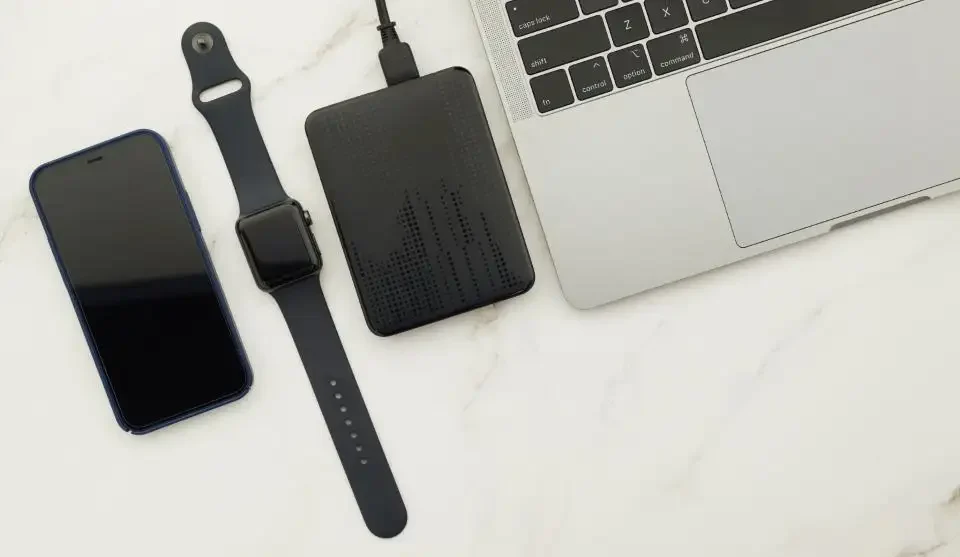
The following workflow provides a straightforward starting point.
Phase 1: Recording
- Wear a compatible fitness tracker.
- Record workouts independently.
- Keep Bluetooth and Wi-Fi disabled when possible.
- Avoid unnecessary smartphone pairing.
Phase 2: Extraction
- Connect the wearable to a trusted computer through USB.
- Locate supported FIT, GPX, or TCX files.
- Copy original activity records.
- Verify that the exported files are readable.
Phase 3: Storage
- Organize records by year and activity.
- Encrypt sensitive archives.
- Maintain offline backups.
- Keep original files unchanged.
Phase 4: Analysis
- Import activities into compatible offline software.
- Use spreadsheets for basic reporting.
- Consider a local Home Assistant dashboard or self-hosted Endurain installation for more advanced analysis.
- Avoid cloud-dependent integrations if strict isolation is required.
Phase 5: Maintenance
- Review device connectivity after updates.
- Test backups.
- Check whether software introduces external network dependencies.
- Maintain a documented record of the applications and tools used.
This approach creates a system in which the wearable records activity, the computer manages the files, and the user controls the information.
Frequently Asked Questions About Air-Gapped Fitness Trackers
Can a fitness tracker work without Bluetooth?
Yes. Many fitness trackers can record basic activities without a continuous Bluetooth connection. Steps, workout duration, and other measurements may continue to be recorded locally.
However, the availability of historical data and advanced features depends on the specific model. Some devices also require Bluetooth for initial setup or certain configuration tasks.
Can we use a Garmin watch without Garmin Connect?
Some Garmin watches can record activities independently and expose FIT files through USB.
Compatible models may allow users to retrieve these files without uploading them to Garmin Connect. The exact process depends on the watch’s storage and USB-transfer capabilities.
We should check the individual device documentation before purchasing a model specifically for offline use.
Where does Garmin store fitness data when it is not connected to Garmin Connect?
On compatible devices, recorded activities can be stored in internal device storage, often as FIT files.
For models that expose their storage through USB, activity files can commonly be found under the Garmin/Activity directory.
Not every device exposes its files in the same way, and daily health summaries may be stored differently from individual workout records.
Can we export fitness data without an internet connection?
Yes, provided the wearable supports local file access or another offline export method.
A USB connection can transfer supported activity files to a computer without requiring an internet connection or uploading information to a cloud account.
Is Gadgetbridge completely offline?
Gadgetbridge does not have Android network permission, according to its official documentation. This prevents it from sending collected information over the internet.
However, it generally communicates with compatible wearables using Bluetooth. Therefore, it is a local-first alternative to cloud-connected companion applications, not a solution for permanently disabling all wireless communication.
Can Home Assistant track workouts without cloud services?
Yes, a locally configured Home Assistant installation can display fitness information obtained from local data sources.
However, not every fitness integration is local. Some integrations require manufacturer accounts and cloud APIs.
For a privacy-focused configuration, we should import local activity files and avoid integrations that depend on remote servers.
What is the best file format for offline fitness tracking?
FIT is particularly useful for structured fitness activities because it can contain workout information, timestamps, GPS data, and sensor measurements.
GPX is especially useful for GPS routes, while TCX supports structured activity and training information.
When a wearable provides FIT files, retaining the original files is generally a good archival practice.
Does turning off Bluetooth improve fitness tracker battery life?
It can reduce power consumption associated with wireless communication, but the actual improvement depends on the device.
GPS usage, screen brightness, continuous heart-rate monitoring, sensors, and other functions can have a greater effect on battery life.
Final Thoughts: Take Control of Your Fitness Data
Building an air-gapped fitness tracking system is about more than switching off Bluetooth or avoiding a particular smartphone application. It requires a deliberate approach to how personal information is recorded, transferred, stored, analyzed, and backed up.
For users with compatible Garmin devices, USB-based FIT file extraction provides an interesting starting point. Open-source tools such as Gadgetbridge offer another approach for people who prefer local device management without conventional cloud-connected companion applications. Meanwhile, spreadsheets and self-hosted platforms provide ways to analyze historical workout information without depending on commercial fitness dashboards.
We do not need global leaderboards, automatic uploads, or permanent smartphone connections to maintain a useful exercise history.
Our fitness data should remain accessible to us, manageable by us, and stored according to our own privacy requirements.
A carefully designed local-only workflow allows us to keep the benefits of fitness tracking while reducing unnecessary dependence on connected services.
Recommended Further Reading
For readers interested in privacy-first fitness technology, these related guides provide useful next steps:
- Best No-Cloud Fitness Trackers: Privacy-First Wearables — Explore wearable options that reduce dependence on cloud-based fitness services.
- Gadget-Free Fitness Tracking: How to Monitor Activity Without Smart Devices — Discover alternative ways to monitor physical activity without relying on connected wearables.
Technical References and Further Documentation
- Garmin FIT Activity File Documentation — Understand the structure and information stored in FIT activity files.
- Garmin Support: Manually Upload Activities — Review Garmin’s USB activity-file retrieval instructions.
- Garmin Device Backup and Restore — Learn about backing up compatible Garmin device information.
- Gadgetbridge Data Management — Explore local database exports and backups.
- Gadgetbridge Frequently Asked Questions — Understand its privacy and network-permission approach.
- Endurain Documentation — Explore self-hosted fitness activity management.